
A one task at a time app sounds simple, but most of them still dump too much on your screen. Students usually don't need more features. You need less ambiguity when it's 9:40 p.m. and your brain is done.
The good ones make the next move obvious. The weak ones are just timers, pretty dashboards, or giant task bins with a "focus" mode taped on.
We cut this list down to the apps that actually help you pick something, start it, and stay with it. These are the ones worth your attention.
Show 5 more productsShow fewer products
1. Daily Planner

- Clarifies one top study priority
- Short daily lists feel doable
- Pomodoro estimates make tasks concrete
- Links today to weekly goals
- Strong end-of-day closure ritual
- Less suited to huge backlogs
- Narrower than full task managers
- Muse features are optional extras
Some students don’t need another timer. They need help deciding what counts today. That’s where a planning-first one task at a time app earns its keep.
Our Daily Planner is built around a simple sequence: pick one most-important task, break it into focus blocks, then close the day properly. That sounds almost too basic until you’ve watched how much study paralysis comes from not knowing where to begin. A short list is not a limitation here. It’s the point.
A few things make it behave differently in real use:
- You choose one clear priority before you start
- You estimate work in pomodoros, so “review chapter 4” turns into something testable
- Your daily plan connects back to weekly goals, which keeps random busyness from pretending to be progress
- Each session tracks estimated versus actual time, which is mildly humbling and very useful
- The day ends with a Focus Ring, reflections, streaks, and review
That last piece matters more than most apps admit. If your workday just fades out, your brain keeps carrying it around. Closing the loop reduces that low-grade academic guilt that follows students into dinner, the bus ride home, and the second half of the evening.
Compared with plain list apps, this is more intentional. Compared with broader task managers, it’s narrower on purpose. We’d choose it when the real problem is follow-through, not storage. If you want to archive a huge backlog of someday tasks, there are better tools for that. If you want to stop opening your laptop and wandering for 40 minutes, this is closer to the mark.
Browser-based access helps more than it sounds like it would. Students switch between laptop, library desktop, and phone constantly. Friction hides in those handoffs.
There’s also optional Muse support for students who already own a headband and want to track flow state in real time. Useful, yes. Necessary, no. The method should work before the data gets fancy.
A timer measures time. A plan decides what time is for.
2. Todoist
- Excellent cross-platform syncing
- Strong for recurring assignments
- Fast natural language capture
- Handles school and life together
- Useful for shared group tasks
- Can feel overly system-heavy
- Not inherently one-task focused
- Some planning ritual still needed
Todoist is the grown-up option for students whose academic life has started to sprawl. Multiple classes, deadlines, recurring tasks, group work, life admin. It handles that kind of mess without acting fragile.
Its strength is not that it helps you do one thing at a time by itself. Its strength is that it keeps everything from falling through the floor while you’re trying to do that one thing. Projects, due dates, priorities, recurring tasks, and fast capture all help when your week has too many moving parts.
The cross-platform reliability is a real advantage. That sounds boring until you’ve added a task on your phone after class and need it waiting on your laptop at the library. Boring is good. Boring means dependable.
Todoist makes the most sense when your bottleneck is organization. If you keep missing small obligations or losing track of assignments across classes, a stronger task manager helps more than a minimalist focus app. It also works well if you want one system for school and regular life, because students rarely have the luxury of separating those cleanly.
A few practical notes:
- Natural language entry lowers the capture burden
- Shared tasks are useful when group projects stop being theoretical
- Productivity reports give you light review without turning your week into a dashboard hobby
The tradeoff is familiar. More capability means more surface area. Some students open a powerful task manager and immediately start managing the manager. If that sounds like you, Todoist may still be worth using, but you’ll want a separate ritual for deciding today’s actual priority.
3. TickTick
- Tasks and Pomodoro stay connected
- Useful all-in-one study workflow
- Calendar view supports realistic planning
- Habit tracking can build consistency
- Interface can feel visually busy
- Habit features add extra upkeep
- Some focus features need premium
TickTick sits in the middle ground between task manager and study tool. For a lot of students, that’s the sweet spot. You don’t just list work. You can attach time to it and actually begin.
That matters because timers only help when they’re attached to a real task. “Start a 25-minute session” is vague motivation theater if the task itself is mushy. TickTick is better than many timer apps because it lets you move from task to session without switching mental context.
It tends to suit students who already like Pomodoro-style studying and want more structure around it. The built-in timer, task list, habits, and calendar view can create a workable daily system in one place. You can turn “study chemistry” into a named task with an actual block of time instead of hoping it happens by force of guilt.
Where students get tripped up is scope. Habit tracking sounds helpful, and sometimes it is. Sometimes it also adds one more thing to look at, maintain, and fail at by Thursday afternoon. A focus tool should help you start, not quietly multiply your obligations.
Pick TickTick over a simpler one task at a time app if visible timers genuinely help you move and if you want your tasks and study sessions tied together. Skip it if visual calm matters more than feature range.
4. Microsoft To Do
- Free and easy to start
- My Day reduces list overwhelm
- Clean interface keeps planning light
- Works well with Outlook workflows
- Helpful shared lists for teamwork
- Limited advanced project planning
- No built-in focus timer
- Less structured than planning-first apps
Microsoft To Do is a good reminder that free doesn’t have to mean flimsy. It’s simple, clear, and a little more helpful than basic list apps when you need to reset your day.
The My Day approach is the part that earns its spot here. Instead of staring at one long task dump, you pull a few items into today. That small move reduces the shutdown response students often have when everything feels urgent and none of it feels startable.
It’s especially practical if your school already runs through Outlook or Microsoft 365. In that case, using it feels less like adopting a new productivity system and more like tightening up the one you already have.
When we’d choose it:
- You want a free tool with gentle daily prioritization
- You don’t need advanced project structure
- You benefit from a daily reset more than a permanent master plan
Compared with Todoist or TickTick, it’s less ambitious. That’s often a compliment. Compared with Google Tasks, it gives a little more daily guidance. Compared with a planning-first app like Daily Planner, it’s looser and less method-driven. There’s no strong push toward one most-important task or timed focus blocks.
Still, some students don’t need a philosophy. They need a clean place to decide what today is.
5. Google Tasks

- Very low setup friction
- Works inside Gmail and Calendar
- Fast task capture and editing
- Hard to overcomplicate
- Good for simple tracking
- Weak daily prioritization guidance
- No built-in study session structure
- Feels thin for deeper planning
Google Tasks is for students who want almost no friction at all. If you live in Gmail and Google Calendar already, keeping tasks nearby can matter more than having a richer feature list.
This is not a deep system. That’s why it works for some people.
A stressed student will often stick with the tool that asks the least from them in the moment. Google Tasks is quick to open, quick to capture in, and hard to overcomplicate. There’s value in that, especially if you’ve already abandoned three “better” apps.
It’s enough when:
- you mainly need quick capture and simple tracking
- your calendar already carries most of your planning load
- adopting a new system would probably last six days
Where it starts to feel thin is focused study planning. There’s little guidance around prioritization, no meaningful review layer, and no built-in sense of session structure. If your problem is not remembering things, it’s fine. If your problem is deciding and starting the right task, it may not carry enough weight.
Feature comparisons can miss the obvious truth here: ecosystem fit often wins. The best app on paper loses if you never open it.
6. Things 3

- Calm, distraction-light interface
- Polished Apple-native planning experience
- Supports focused personal task management
- Low visual noise helps follow-through
- Apple-only with no cross-platform support
- No built-in study timer
- May feel like a beautiful list
Things 3 is the premium minimalist choice for Apple-only students who care about interface calm. And yes, that can affect follow-through more than people like to admit.
A noisy interface creates small decisions. Small decisions add up. By the time you’re meant to start studying, you’ve already spent attention just looking at the tool. Things 3 avoids a lot of that. It feels quiet, deliberate, and well-edited.
That calm comes with boundaries. It’s for students who know they’re staying inside Apple’s ecosystem. If you also use Windows at school or Android on the go, the limitation isn’t abstract. It becomes annoying fast.
It also isn’t trying to be a study timer or an ADHD study planner app with explicit focus scaffolding. It’s elegant personal task management. That’s different. For some students, that’s enough structure without unnecessary noise. For others, it’s still just a beautiful list.
Worth choosing over Apple Reminders if you want a more polished planning experience and know you’ll use it consistently. Not worth it if your main issue is getting started on focused work blocks.
7. Any.do
- Guides realistic daily planning
- Calendar-aware scheduling adds context
- More structure than basic lists
- Good middle ground for students
- Less powerful than Todoist
- Not ideal for strict focus
- Interface is not the most minimal
Any.do is useful for students who don’t need a power-user task manager but do need more help than a plain list provides. Its center of gravity is daily planning, which is a better angle than endless storage for a lot of people.
That shift matters. “What’s on my list?” is not the right question when your bandwidth is limited. “What will I actually do today?” is better. Less flattering, more useful.
Any.do helps nudge students toward that daily realism. Its planning flow and calendar awareness can make you confront available time instead of pretending a twelve-hour list is reasonable. That’s a quiet benefit. Students tend to overestimate what fits in a day, then call themselves lazy when the math breaks.
It sits between categories:
- more day-focused than Google Tasks
- less task-heavy than Todoist
- less timer-centered than TickTick
It shares some intent with Daily Planner, especially around making today concrete, but it doesn’t lean as hard into one clear priority, focus blocks, and end-of-day closure. So the experience is supportive, though not especially strict.
Choose it if your main struggle is shaping a realistic day. Not if you want the most minimal interface or the strongest one-task method.
8. Apple Reminders

- Already installed on Apple devices
- Fast capture with minimal setup
- Trusted alerts for key deadlines
- Simple lists stay easy to maintain
- Too basic for deeper planning
- No built-in study timer structure
- Apple-only limits cross-platform use
Apple Reminders wins a lot of student workflows for one unglamorous reason: it’s already there. Setup friction is real, and built-in tools often beat dedicated apps simply by being available when you need them.
That matters more than feature lists suggest. A reminder captured in two seconds is better than a perfect system you’ll “set up later.” Students who lose momentum during onboarding usually do better with tools that ask nothing from them at the start.
Apple Reminders is best treated as a dependable capture and reminder tool, not a full focus system. It’s good for simple lists, quick additions, and trusted alerts. It’s less good if you want richer planning, review habits, or timed study support.
The comparison with Things 3 is useful here. Both feel Apple-native and relatively calm. Reminders is the faster start and lower commitment option. Things 3 is more polished and intentional, but asks more from you up front.
Simplicity helps until it removes too much structure. That’s the line to watch.
| Daily Planner | Todoist | TickTick | Microsoft To Do | |
|---|---|---|---|---|
| Pomodoro timer built in | ✓ | × | ✓ | × |
| Daily prioritization view | ✓ | ✓ | ✓ | ✓ |
| Recurring tasks | × | ✓ | ✓ | × |
| Natural language task entry | × | ✓ | ✓ | × |
| Shared task collaboration | × | ✓ | × | ✓ |
| Calendar view | × | ✓ | ✓ | × |
How to Choose the Right One Task at a Time App
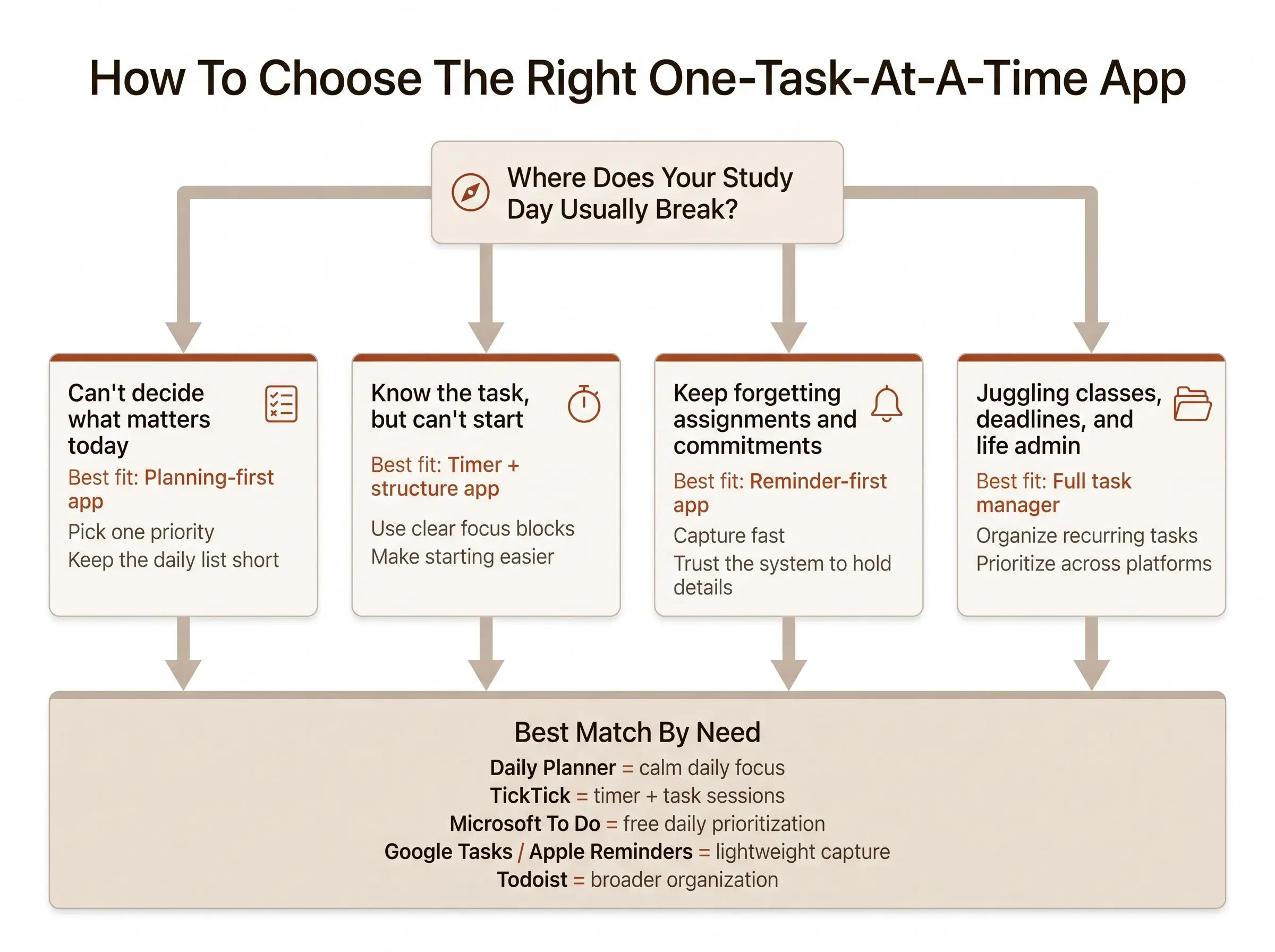
Most students start with features. We’d start with the bottleneck. A tool only works if it solves the point where your day usually breaks.
Use this as a practical filter:
- If you don’t know what to work on, choose a planning-first app
- If you know what to do but can’t start, choose a student timer with structure
- If you forget commitments, choose a reminder-first app
- If your devices are split across platforms, treat sync reliability as non-negotiable
The short matching guide looks like this:
- Planning-first: Daily Planner
- Task-manager first: Todoist
- Timer plus task combo: TickTick
- Free daily prioritization: Microsoft To Do
- Lightweight ecosystem pick: Google Tasks or Apple Reminders
- Apple premium minimalist pick: Things 3
- Daily planning guidance: Any.do
Then ask four plain questions:
- Does it help you choose one clear next task?
- Does it reduce visual noise or add to it?
- Does it support timed work blocks if you need them?
- Will you still open it during a stressful week?
That last one is the trap. Students often pick the app with the most features instead of the one they’ll still trust when deadlines pile up.
What Actually Helps ADHD Students Focus on One Task
Students searching for a focus app for ADHD students usually aren’t asking for more motivation. They’re asking for less ambiguity. Less friction. A smaller place to begin.
That’s why the most useful features are often plain ones:
- one clear next action
- a short daily list
- visible time boundaries
- gentle reminders, not constant alarms
- end-of-day closure so unfinished work doesn’t smear into guilt
More features can help with organization, but they can also hurt follow-through. A simple focus app for ADHD can work well if your issue is startup friction. But if it’s too minimal, it may not give enough structure to hold the day together.
Timers help some students start. They can also become performative if they aren’t attached to a real plan. Counting minutes is not the same as doing the right thing.
As a practical fit:
- For calm daily structure: Daily Planner
- For timer-driven study sessions: TickTick
- For free daily prioritization: Microsoft To Do
- For simple ecosystem-native capture: Google Tasks or Apple Reminders
- For broader project management across classes: Todoist
An ADHD study planner app doesn’t need to feel clinical to be useful. It needs to make the next step obvious and small enough to begin.

Which Type of Study App Fits You Best
The right app depends less on personality type and more on where your workflow usually fails. Most students already know the failure point. They just keep choosing tools built for a different one.
A quick fit check:
- If you feel overwhelmed before you begin, prioritize one-priority planning and a short daily list
- If you procrastinate until urgency arrives, use timed focus blocks and visible session structure
- If you’re juggling school, work, and life admin, prioritize recurring tasks, stronger organization, and cross-platform sync
- If you hate managing systems, stay with built-in or ultra-lightweight tools
- If you want measurable focus and already own a Muse headband, Daily Planner’s optional neurofeedback layer is a real niche benefit
For a clean shortlist:
- Most intentional daily focus: Daily Planner
- Best full-featured task manager: Todoist
- Best timer plus task combo: TickTick
- Best free guided daily list: Microsoft To Do
- Best Google ecosystem option: Google Tasks
- Best Apple premium minimalist option: Things 3
- Best day-planning helper: Any.do
- Best built-in Apple option: Apple Reminders
The best setup is usually the one that feels slightly boring and keeps working anyway.
How We Evaluated These Tools
We compared these apps by how well they support one-task-at-a-time study workflows, using the product information and linked references available for each tool. The evaluation focused on practical fit rather than feature count alone.
We considered:
- Choosing a next task: Whether the app helps students identify a clear priority or manageable daily list
- Starting focused work: Whether it provides timed sessions, task-linked focus blocks, or other structure for beginning work
- Managing commitments: How well it handles reminders, deadlines, recurring tasks, and broader school responsibilities
- Reducing friction: Whether capture, setup, and daily use are straightforward enough to support consistent use
- Device and ecosystem fit: Whether the app suits the platforms and tools a student already relies on
- Review and follow-through: Whether it offers planning, progress, reflection, or closure features beyond simple task storage
The rankings reflect the balance of these factors for students who want to decide, start, and complete one task at a time. A more capable app was not automatically treated as a better focus tool; extra features can help with organization while also adding complexity.
Conclusion
The best one task at a time app for students is not the one with the most features. It’s the one that makes the next study step obvious and easy to start.
If you need calm structure, lean toward planning-first tools. If you need momentum, lean toward timer-supported tools. If simplicity keeps you consistent, choose the app that already fits the devices and tools you use every day.
Keep the decision small. Pick the two options that match your actual bottleneck. Test each for one real study week.
Then judge them by one question:
Did this app help me decide, start, and finish the right task today?
That’s the whole game.
Article Record
ReferencesPrimary sources used for this article
- Clarity, finally.
- Simplify Task Management with Todoist
- Stay Organized, Stay Creative.
- Features - TickTick
- Things - To-Do List App for Mac & iOS
- Learn about Google Tasks - Google Tasks Help
- Productivity and Microsoft To Do | Microsoft Support
- Welcome to Microsoft To Do | Microsoft Support
- Use Reminders on your iPhone, iPad, or iPod touch
- Organize reminders on your iPhone or iPad - Apple Support
- A simple to do list to manage it all
- Choose the plan that's right for you. Free, Premium, or teams and businesses.
- Upgrade - TickTick
- Plans and pricing
- The Best Task Management Apps for 2026
Update HistoryMeaningful revisions to this article
- Updated pricing details for all eight featured apps to help students compare costs more easily.
- Added a methodology section explaining how the apps were evaluated, making the comparison clearer and more transparent.